How to rename screenshots automatically on Mac
“Screenshot 2026-10-02 at 8.03.32 PM.png” tells you nothing. A name like “Razorpay Payout settings 2026-10-02.png” tells you everything.
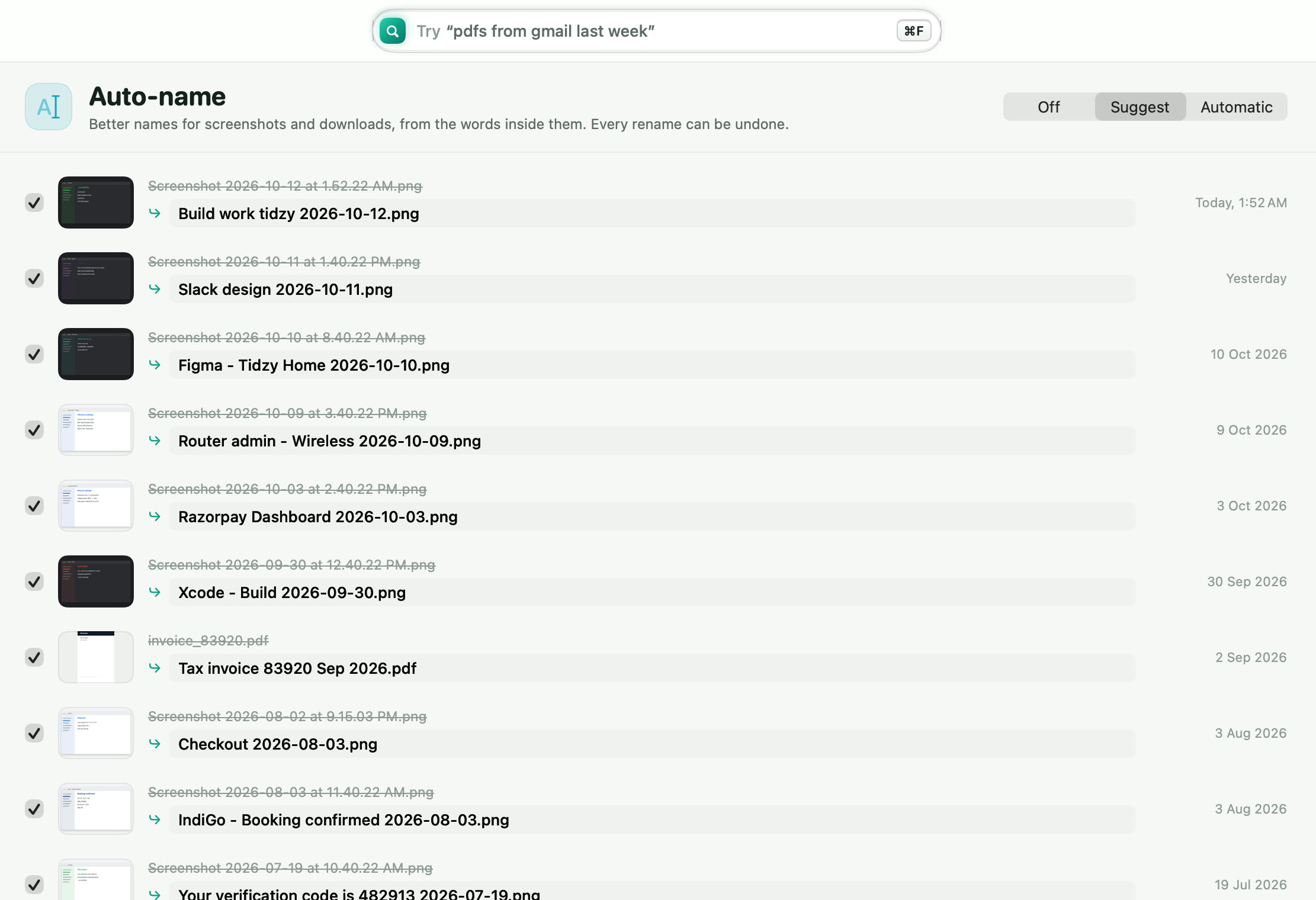
Turn on Auto-name in Tidzy. It reads the words inside each new screenshot on your Mac and suggests a short name, like the app or site plus the heading on screen, followed by the date. Approve suggestions in one click, or set it to Automatic so screenshots are renamed as they land.
Set it up
- Open Auto-name
Pick Auto-name in the sidebar. You’ll see every screenshot and generically named download with a suggested name next to it.
- Choose a mode
Suggest waits for your approval. Automatic renames new screenshots and downloads as they arrive. Off leaves names alone.
- Approve in bulk
Untick any you want to keep, then press Rename. Every rename is recorded in History and can be undone.
What makes a good name
For screenshots, Tidzy takes the app or website from the window title and the strongest heading on screen, then adds the date: Xcode Build failed 2026-09-29.png. For PDFs it uses the document’s title and the month it mentions: Tax invoice Sep 2026.pdf.
Private by default
The text is read with Apple’s Vision framework and, on Macs that support Apple Intelligence, tidied up by the on-device model. Nothing is uploaded.
Doing it without Tidzy
You can change where screenshots are saved with ⇧⌘5 › Options, and rename many files at once in Finder: select them, right-click and choose Rename. Finder can only add text or a counter, though; it can’t read what’s in the picture.

Try it on your own files
From $4.99, one time, for 1, 2 or 3 Macs. Everything runs on your Mac, and every action can be undone.