How to free up space on your Mac, safely
Most of a full disk is forgotten installers, old downloads and copies of the same file. Here’s how to clear them without losing anything you need.
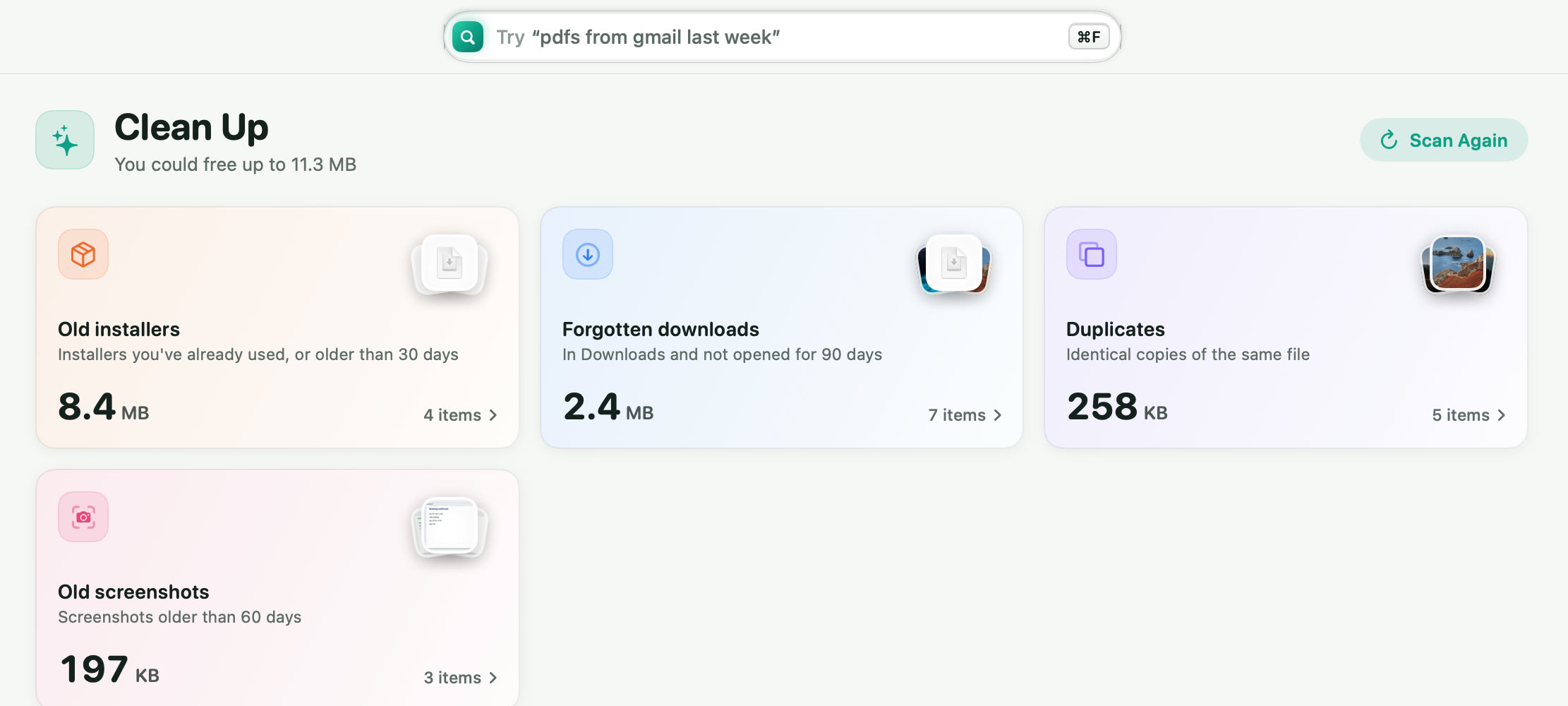
Open Clean Up in Tidzy. It groups old installers, downloads you haven’t opened in 90 days and duplicates, and shows how much each would free. Review a group, move what you don’t need to the Trash, and use History to put back anything you change your mind about.
Clean up in three steps
- Open Clean Up
Your Home screen shows how much you could free. Click it, or pick Clean Up in the sidebar.
- Review each group
Old installers are .dmg and .pkg files you’ve already used or that are over 30 days old. Forgotten downloads are files in Downloads you haven’t opened for 90 days. Duplicates are identical copies of the same file.
- Move to Trash, with a safety net
Selected files go to the Trash, never straight to deletion. Every clean-up is logged in History, where one click puts files back exactly where they were.
Find the biggest files
The Large Files shelf lists everything over a size you choose, biggest first, with the type and size on each tile. It’s the fastest way to spot a forgotten 4 GB screen recording.
What Tidzy never touches
Tidzy won’t move anything inside system folders, app bundles, your Photos library or Mail. It only works in the folders you choose in Settings.
Doing it without Tidzy
macOS has a built-in view under System Settings › General › Storage. Its Recommendations can empty the Trash automatically and store files in iCloud, and the Documents section lists large files. It doesn’t find duplicates, and it can’t tell you which downloads you never opened.

Try it on your own files
From $4.99, one time, for 1, 2 or 3 Macs. Everything runs on your Mac, and every action can be undone.